
Overview
This article is meant as a general guideline to install and configure eFORMz Port Monitor. Uses of the Port Monitor may include capturing ZPL data for eFORMz to use for creation of other documents such as pack slips.
Requirements
- Installation of eFORMz..
Procedure
Install and Configure Port Monitor
- To install the Port Monitor port, go to:
C:\Minisoft\eFORMz_6\portmonitor- Run AddPortMonitor64.bat.
- A 32-bit folder is available to support some legacy systems.
- You can run the batch file from Windows Explorer or a Command Prompt window.
- Some sites require you to run the batch file through a Command Prompt window as an Administrator.
- Add a new printer via your Windows Printer Wizard by clicking:
- START Menu > Control Panel > Printers > Add Printer.
- Select LOCAL PRINTER and then click Next.
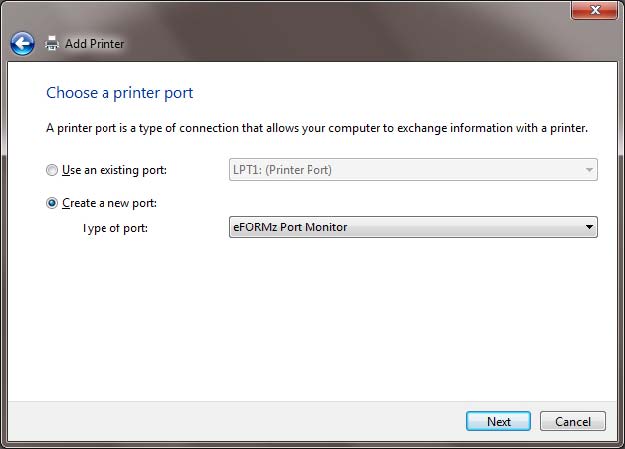
- Choose Create New Printer Port.
- From the drop down list select eFORMz Port Monitor.
- Click Next.
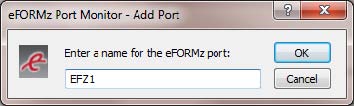
- From the eFORMz Port Monitor dialog box enter the:
- Port name.
- Number (id).
- We recommend using the format EFZn where n is a value number.
- Using the browse button for the Capture Directory field select the folder where you would like your captured files to be stored:
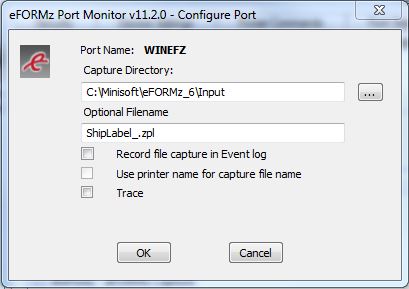
- Optional Filename lets you customize the default timestamped file name.
- Text that you type before the extension is included before the timestamp.
- The extension that you include is added to the file name.
- However, the naming is independent of the file type.
- Results are unpredictable if you mismatch file types and file extensions, such as adding .zpl to an XML file.
- All files received by this port monitor contain the same naming convention.
- ShipLabel_201307112240263320.zpl
- ShipLabel_201307112240291480.zpl
- ShipLabel_201307112240303780.zpl
- In the Optional Filename field, include only the prefix of the name and the extension, as in test.prn.
- Do not include an asterisk or other pattern-matching characters.
- This will cause the printer to generate an error.
- Record file capture in Event log can remain unchecked.
- Check Use printer name for capture file name only if you wish the data file name to replicate the name of the printer, otherwise, leave unchecked.
- Trace is intended for troubleshooting and debugging.
- Leave it unchecked.
- Click OK when complete.
- If you turn tracing on, the trace file is:
C:\Windows\System32\efzmon.tra
- Optional Filename lets you customize the default timestamped file name.
Configure Print Drivers
- If using UPS WORLDSHIP:
- DO NOT SELECT GENERIC/TEXT ONLY.
- The driver will be Zebra ZP 450-200dpi UPS WORLD SHIP PORT MONITOR.
- If using FedEx ShipManager:
- DO NOT SELECT GENERIC/TEXT ONLY.
- Use a Zebra driver.
- The driver will be Zebra ZP 450-200dpi.
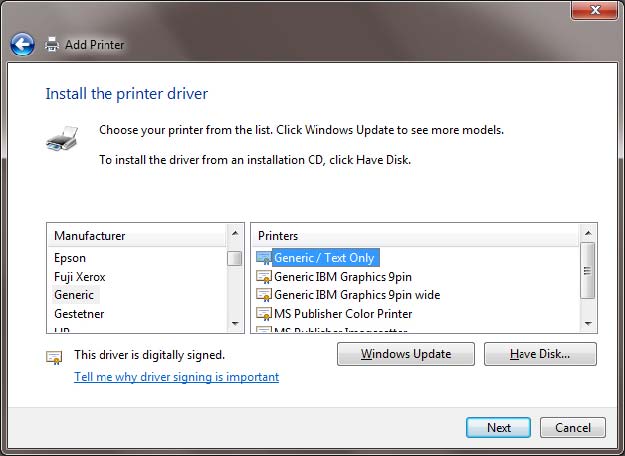
- Select
- Manufacturer: Generic.
- Printer type: Generic/Text Only.
- Click Next.
- Select Keep Existing Driver.
- Enter a printer name.
- The printer name should match the QUEUE name that is specified on your host system sending the print files (spool files) to your Windows operating system.
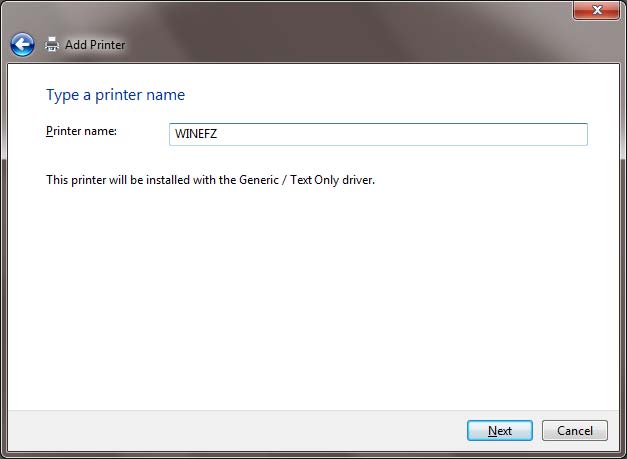
- The printer name should match the QUEUE name that is specified on your host system sending the print files (spool files) to your Windows operating system.
Assistance
If any further assistance is needed, please contact our Support team.
Related Articles
Comments
0 comments
Article is closed for comments.