
Overview
This article provides step-by-step instructions on how to import CSV (Comma Separated Values) records into eFORMz by creating variables for each element of the CSV file.
Requirements
- eFORMz Composer software installed.
- A CSV file to import.
Procedure
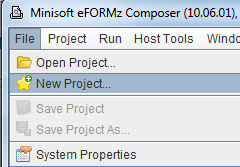
- Open eFORMz Composer and create a new project by selecting:
- File.
- New Project.
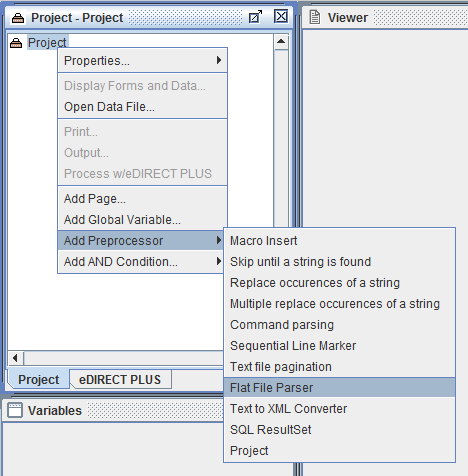
- Right-click the project and select:
- Add Preprocessor.
- Flat File Parser (to add the preprocessor).
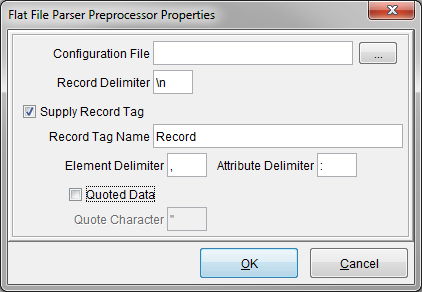
- Set the necessary properties in the Flat File Parser dialog and click OK.
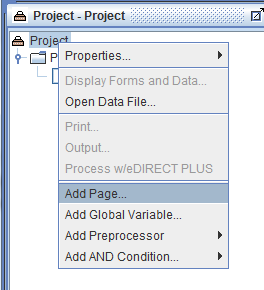
- Right-click the project again:
- Select Add Page.
- This will add a new page to the project.
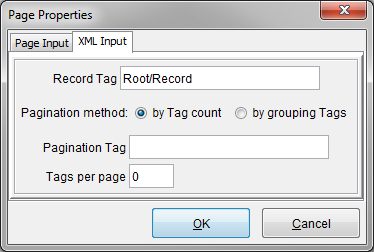
- Navigate to the XML Input tab and configure the required properties.
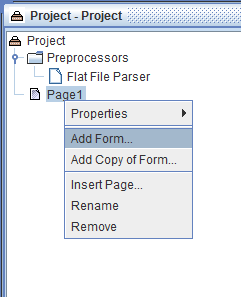
- Right-click the page:
- Select Add Form.
- This will add a new form to the page.
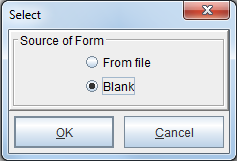
- Choose Blank to create a new blank form.
- In the Viewer:
- Select Open Data.
- Choose From File.
- Import the CSV file. (The variables from the CSV file will be automatically added to the project.)
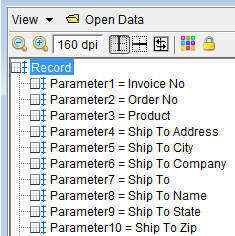
- Right-click on Record in the Viewer:
- Select Add Variables to assign variables to the form.
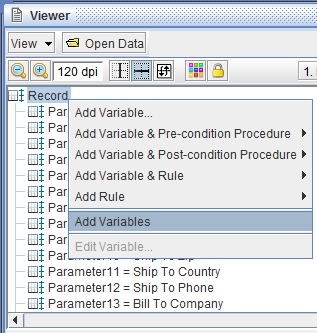
- Select Add Variables to assign variables to the form.
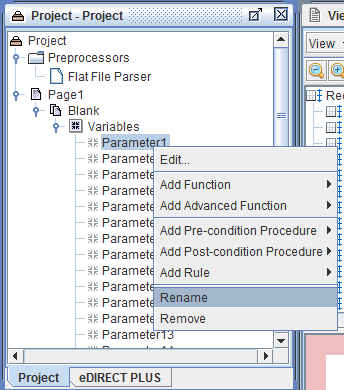
- Rename the variables to more meaningful names by:
- Right-clicking on each variable.
- Selecting Rename.
Assistance
If any further assistance is needed, please contact our Support team.
Comments
0 comments
Article is closed for comments.