
Overview
The Director Toolkit’s Configure tab usually shows the most recently opened Director Toolkit configuration file. You can view and update the contents of a configuration file in this tab. In some cases, the contents of the tab might be blank. This could happen if you create a new configuration but did NOT save the newly created configuration.
Requirements
- eFORMz Installed.
- Access to the Director Toolkit.
Procedure
Checking if the Director is Running
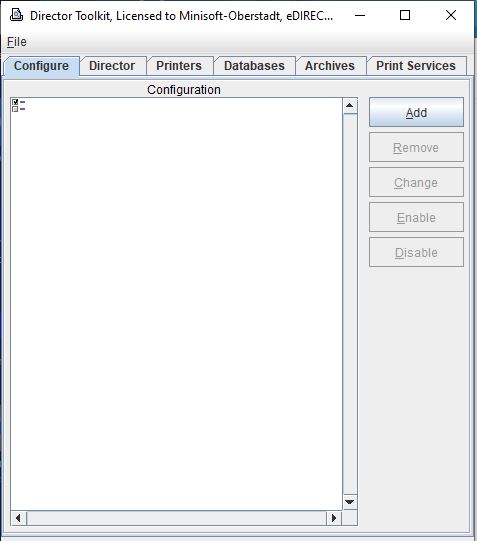
If you open the Director Toolkit with a blank configuration tab (as shown in the image above), please ensure that the director is running.
- Click on the Director tab at the top of the window.
- If the director is running, you should see the message: "The Director is running under the Service Manager" at the bottom of the Director window.
Finding and Opening your Director Configuration Files
- Under the Director tab:
- You will see smaller tabs showing the configuration files the Director is using (e.g., LocalPM.cfg, [CustomName].cfg).
- Make a note of each configuration file name.
- Configuration file locations
- Config files can be saved anywhere the user specifies.
- Default location:
C:\Minisoft\eFORMz_6. (root install folder of eFORMz)
- Switch back to the Configure tab within the Director Toolkit.
- Click File > Open Configuration
- Search for the configuration files noted in step 1.
- Open the file once found.
Assistance
If any further assistance is needed, please contact our Support team.
Comments
0 comments
Article is closed for comments.